How to Stop Lag & Crashes in Alight Motion (2025 Fix)
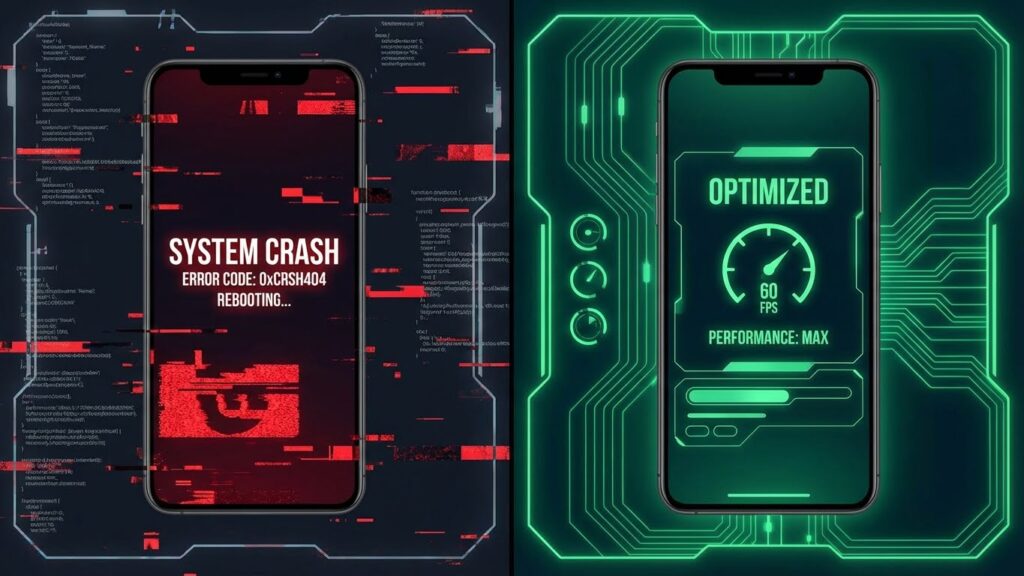
There is nothing worse than spending 3 hours on an edit, only for the app to freeze, lag, or crash right before you export.
Alight Motion is a powerful app, it uses Vector Graphics and Real-Time Compositing. This makes it incredible for professional edits, but it also makes it “heavy” for your phone’s processor. If you are using a device with 2GB, 3GB, or even 4GB of RAM, you have likely faced the dreaded “Black Screen” or extreme stuttering.
But don’t uninstall just yet.
In this ultimate troubleshooting guide, we will walk you through 5 Technical Fixes to stop lag, prevent crashes, and make Alight Motion run smoothly on almost any Android device.
Fix 1: The “Low Quality Preview” Trick (Instant Speed Up)
This is the #1 mistake beginners make. You are trying to edit in 4K. You don’t need to see 4K while you edit; you only need 4K when you export.
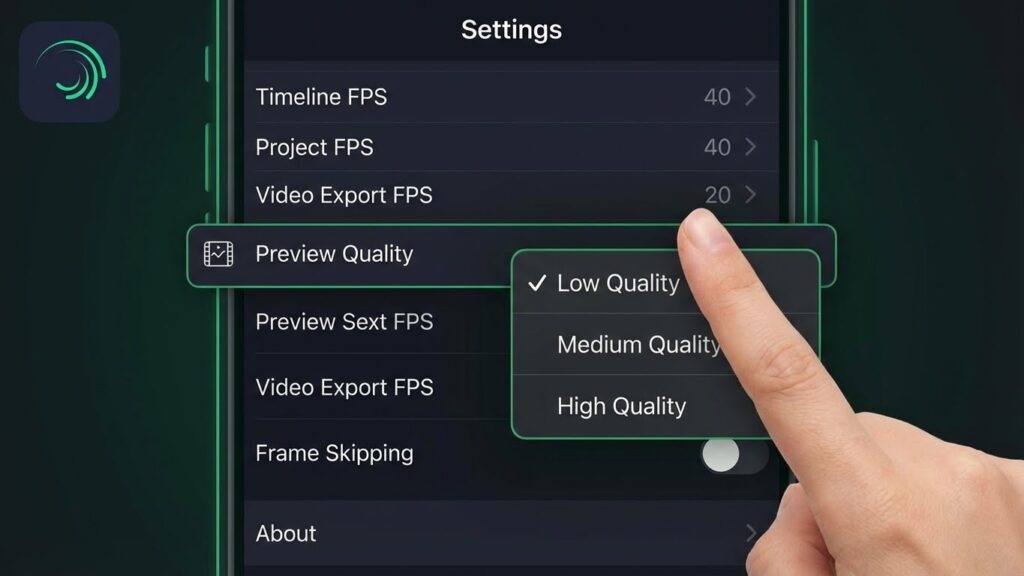
How to Enable It:
- Open your Project.
- Tap the Settings Gear Icon (Top Right).
- Look for “Preview Quality”.
- Set it to “Low” or “Very Low”.
Why this works: It tells the app to generate a blurry, pixelated version of your video for the timeline. This requires 90% less RAM. When you finally click “Export,” the app will switch back to High Quality automatically for the final file.
Fix 2: XML Optimization (Merge Your Layers)
Are you using 50 different layers for one text animation? That is killing your CPU.
The Solution: Grouping Instead of having 20 separate shape layers, select them all and tap the Group button (top toolbar).
- Why: Alight Motion treats a “Group” as a single object. It is much easier for the phone to render one object than 20 individual ones.
The Solution: Pre-Rendering If a specific part of your edit (like a complex Intro) is making the whole project lag:
- Export just the Intro as a video.
- Delete the Intro layers from your project.
- Import the video you just exported.
- Result: You turned 100 heavy layers into 1 simple video layer. Lag gone.
Fix 3: RAM Management (The “Kill Switch”)
Alight Motion needs room to breathe. If you have Instagram, WhatsApp, and TikTok open in the background, they are stealing RAM.
Before you open Alight Motion:
- Open your “Recent Apps” menu.
- Close All apps.
- (Optional) Restart your phone. This clears the “Cache RAM” and gives Alight Motion the full power of your device.
Fix 4: Export Settings for Low-End Devices
If your app crashes only when you try to save/export the video, your settings are too high.
Use These Safe Settings:
- Resolution: 720p (HD). Do not try 1080p or 4K on a 3GB RAM phone.
- Frame Rate: 30 FPS. 60 FPS requires double the processing power.
- Quality: Low (Slider to the left).
- Codec: H.264 (AVC). Do not use H.265 (HEVC), as many older phones cannot encode it fast enough.
Fix 5: The “Mod” Issue
Are you using a Modified (Mod) APK? Many older mods (v4.0.4, v3.7.1) are actually more stable on older phones than the newest v5.0 official version. The new features in v5.0 (like Camera Tracking) are extremely heavy.
- Recommendation: If you are on an old device, downgrade. Check our [Old Versions Archive] to download v4.0.4, which is famous for being the most stable version ever released.
Frequently Asked Questions (FAQ)
1. Why does my video turn black when I add effects?
This is a “Decoder Failure.” It means your phone’s GPU doesn’t support that specific video format. Try converting your source video to standard MP4 (720p) before importing it into Alight Motion.
2. Will clearing the cache delete my projects?
No. Going to Settings > Apps > Alight Motion > Clear Cache removes temporary junk files. It fixes lag safely. However, DO NOT press “Clear Data”, that will delete all your projects!
3. Does Alight Motion support 120Hz?
Technically yes, but editing at 120 FPS is extremely unstable on mobile. We strongly recommend sticking to 30 FPS or 60 FPS for reliability.