How to Fix Alight Motion Login Failed (Google & Facebook Error)
Updated on January 26, 2026
You have installed the app successfully. You have edited your video. Now, you want to back it up or share the project link, so you tap “Sign In.”
But instead of logging you in, the app freezes, spins indefinitely, or shows a red error message: “Login Failed” or “App Not Active.”
If you are using the Alight Motion Pro Mod APK, this is expected behavior. Google and Facebook have strict security protocols that block apps with modified signatures from accessing their API.
However, you can still log in. You just need to know the specific backdoors. In this guide, we will teach you the famous “Browser Trick” to fix Facebook login issues and the best alternative for Google users.
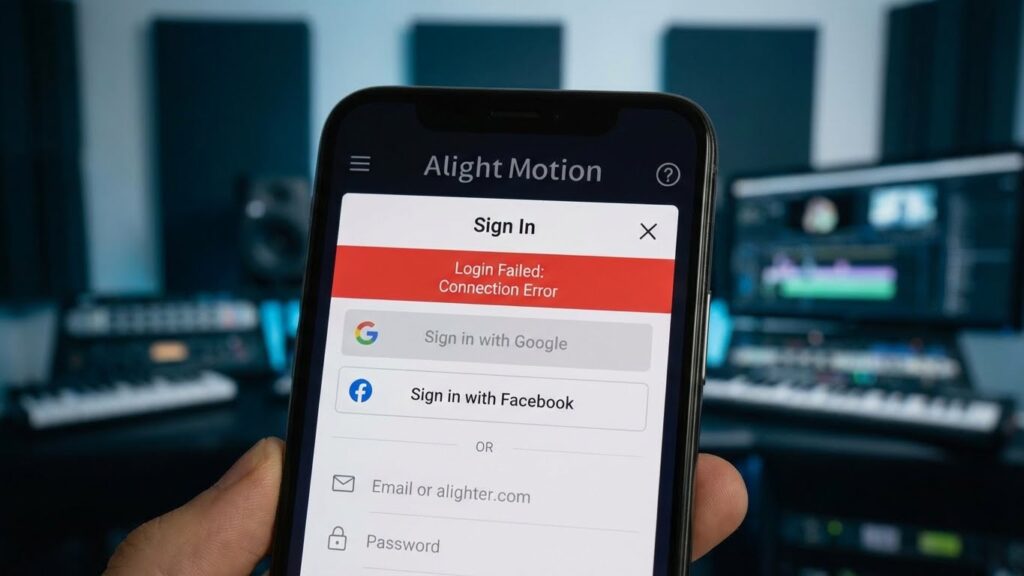
Why You Can’t Login (The “Mod Signature” Problem)
To fix the problem, you must understand the technical reason behind it.
Original vs. Mod: The Security Mismatch
When you tap “Sign in with Google,” Google’s servers check the digital signature of the Alight Motion app installed on your phone.
- Official App: The signature matches the one in the Play Store database. Access Granted.
- Mod App: The signature has been changed by the modder (to unlock Pro features). Google sees this mismatch, thinks the app is a virus or imposter, and Blocks Access.
This is why the “Sign In” button often does nothing on Mod APKs.
Method 1: The “Facebook Browser” Trick (100% Working)
This is the gold standard fix for Mod users. Facebook’s login security is slightly different: it prioritizes the installed Facebook App. If we remove that app, we can force a browser login, which has weaker security checks.
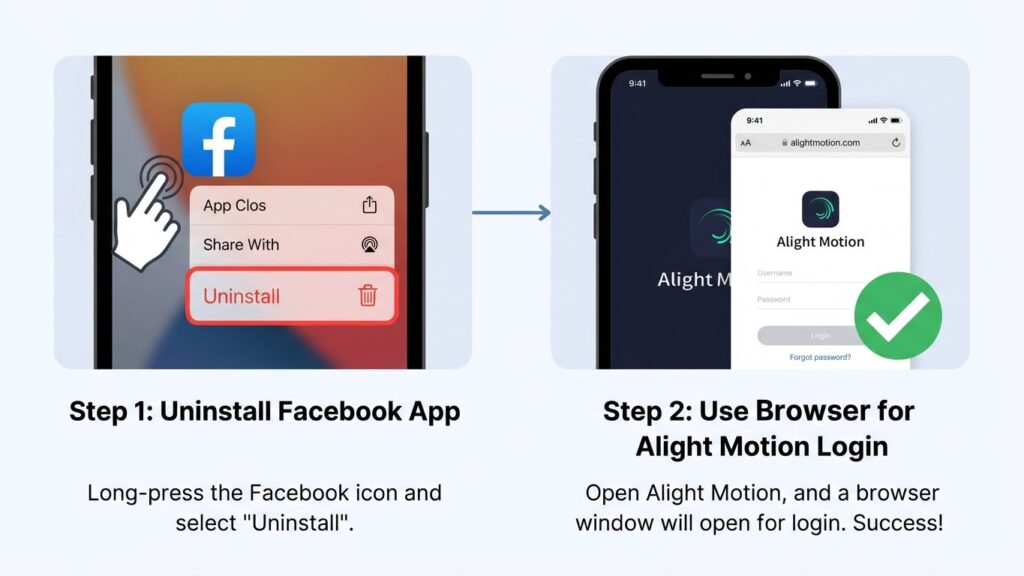
Step 1: Uninstall/Disable the Facebook App
This sounds counter-intuitive, but it is necessary.
- Go to your phone’s App Drawer.
- Long-press the Facebook app icon.
- Tap Uninstall (or “Disable” if it’s a system app).
- Note: Do not worry, you can reinstall it later.
Step 2: Login via the Browser Popup
- Open Alight Motion.
- Tap the Profile Icon (Top Right) > Sign In.
- Select “Sign in with Facebook.”
- Since the Facebook app is missing, Alight Motion will be forced to open a Chrome/Web Browser login page.
- Enter your Facebook email and password in this web page.
- Success! The browser will redirect you back to Alight Motion, and you will be logged in.
Fix “App Not Active” Developer Error
If you see the error “App not active. This app is not accessible right now,” it means the specific Mod version you are using has an outdated Facebook API Key.
- The Fix: You must update to a newer Alight Motion Mod APK (v5.0.272+). Older versions (v4.x) have been blocked by Facebook’s new developer policies.
Method 2: Google Login Workarounds (Why It Fails)
We will be honest: “Sign in with Google” rarely works on Mod APKs. The security is too tight. If you try to force it, you will likely get an endless loading spinner.
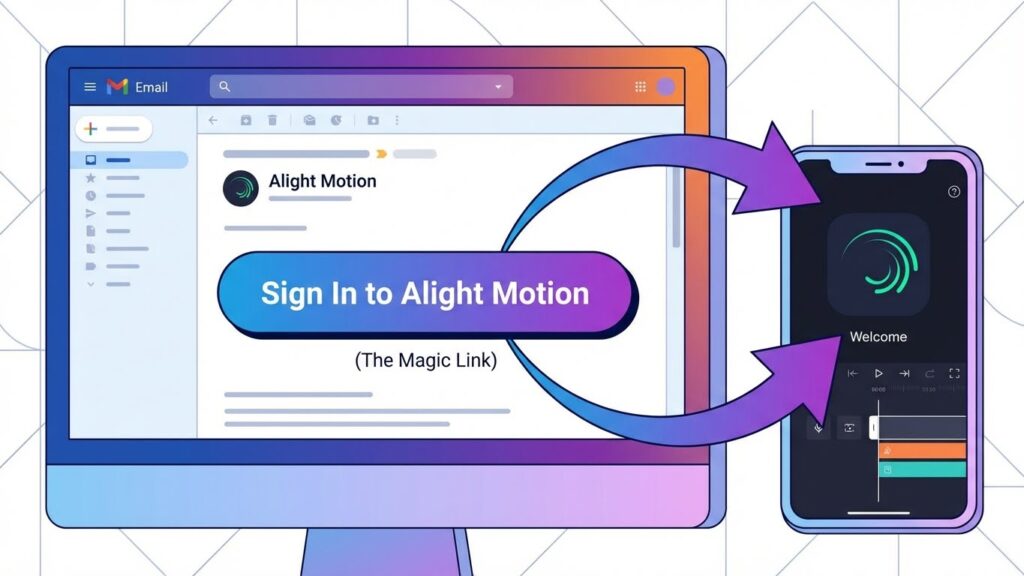
The “Email Sign-In” Alternative (Best Option)
Alight Motion has a third login option that bypasses the “Signature Check” entirely.
- Tap Sign In.
- Choose “Sign in with Email” (Grey button at the bottom).
- Enter your email address.
- Alight Motion will send a “Magic Link” to your inbox.
- Open your email app, click the link, and it will log you into the app instantly.
- Why this works: It uses a web-based authentication token instead of an API call.
Can You Force Google Login on a Mod? (Root Only)
If you have a Rooted Android Device, you can use “Lucky Patcher” or “Magisk” to patch the system signature verification.
- Warning: This is risky and can ban your Google account. We strongly recommend using the Facebook Trick or Email Sign-In instead.
Method 3: Fixing Connection Errors (403 & 5002)
Sometimes the login fails not because of the app, but because of your internet.
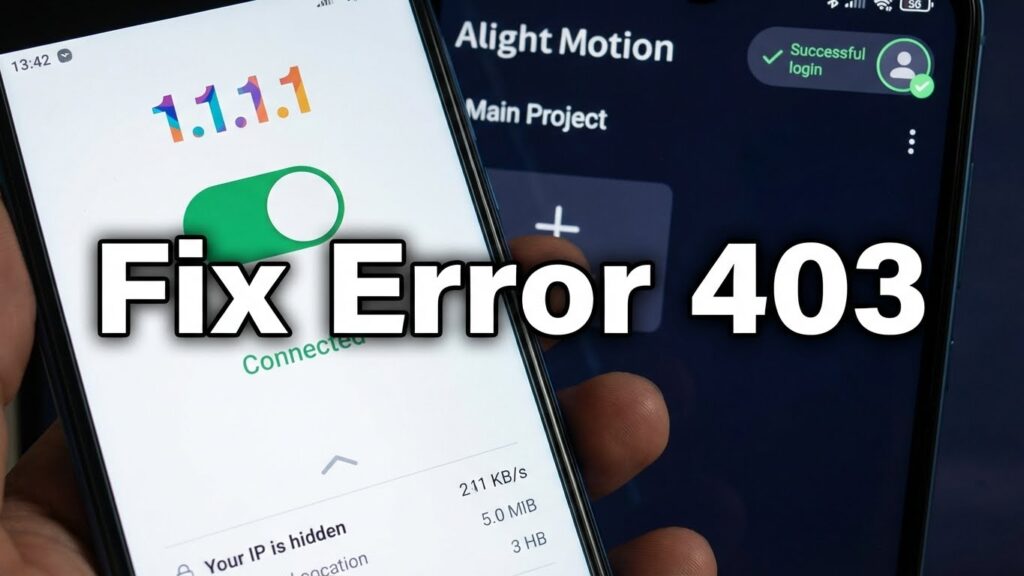
Using a VPN to Bypass Region Blocks
Alight Motion servers are sometimes blocked in specific countries (like Russia or India) or on specific ISPs.
- The Error: “Connection Failed (403)” or “Something went wrong.”
- The Fix: Download a free VPN (like Warp 1.1.1.1 or Turbo VPN). Connect to a USA or Singapore server, then try logging in again.
Checking Server Status (Is Alight Down?)
Before you panic, check if Alight Creative’s servers are offline for maintenance.
- Check: Visit the official Alight Motion Twitter/X page to see if they have posted about outages.
Troubleshooting: “Account Mismatch” Warning
If you manage to log in but get a warning saying “Subscription status cannot be verified,” do not worry.
- Explanation: You are logged into a free account on a Modded Pro app. The server knows you haven’t paid, so it shows this warning.
- The Solution: Ignore it. The Mod features (No Watermark, Keyframes) are unlocked locally on your device, not on the server. You can still edit and export normally even with this warning.
Frequently Asked Questions (FAQ)
Conclusion
the Google Sign In button on the mod just does not work. You are better off using the Facebook Browser trick or the Email Magic Link to lock in your account. These are the only real ways to make sure you never lose your edits. Now that your work is backed up you can edit in peace. If you ever run into other annoying glitches like a Black Screen export crash, the App Not Installed error, or a Project Version conflict, we have simple fixes ready to help you out.